Use cases
Voko and bexio: every call noted on your client's record
Connect bexio in one click: the assistant greets your clients by name, every call is noted on their record, and you approve any change of contact details yourself.

In a fiduciary, a garage or a practice, clients live in bexio: their details, their invoices, their history. The phone lives somewhere else. A missed call, a request for a callback, a new number given out loud: all of it ends up on a scrap of paper or in someone's memory.
Voko links the two. The assistant knows your bexio clients, and what is said on the phone comes back to where you already work.
Connect in one click
In the Voko console, the Integrations section offers bexio. You click "Connect bexio", sign in at bexio, and bexio asks what Voko is allowed to do: read your contacts, write notes and tasks. Nothing to install, no key to copy.
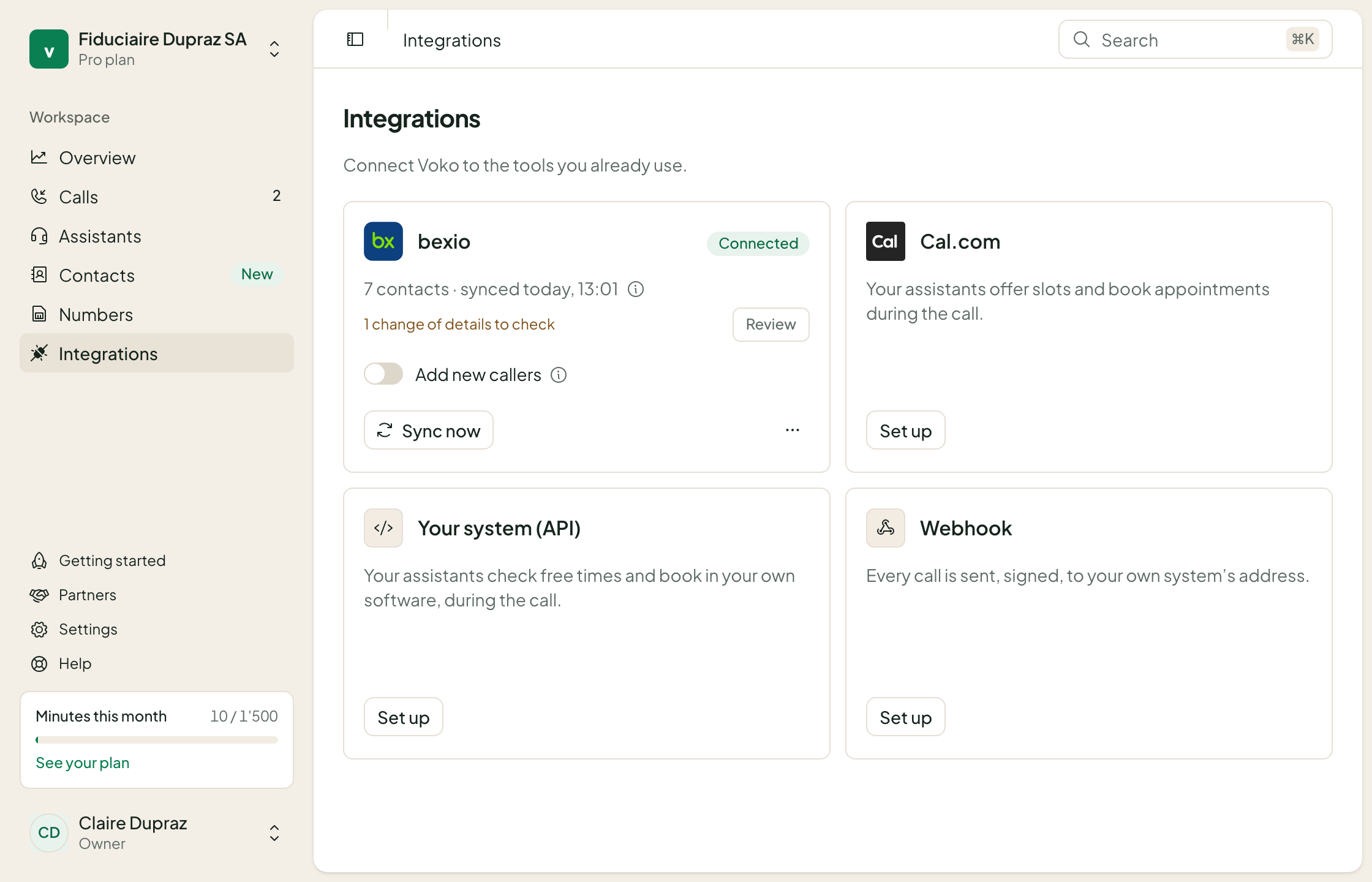
Your contacts are copied into Voko, then refreshed every 30 minutes. You can also start a copy by hand. If you disconnect bexio, you choose whether to keep the copied contacts or remove them, and nothing is changed in bexio.
Your clients are recognised
When a client calls, the assistant recognises the number and greets the person by name. You can also decide, contact by contact, what the assistant does: hand the call to a specific team member, for example. In the call list, you read names, not numbers.
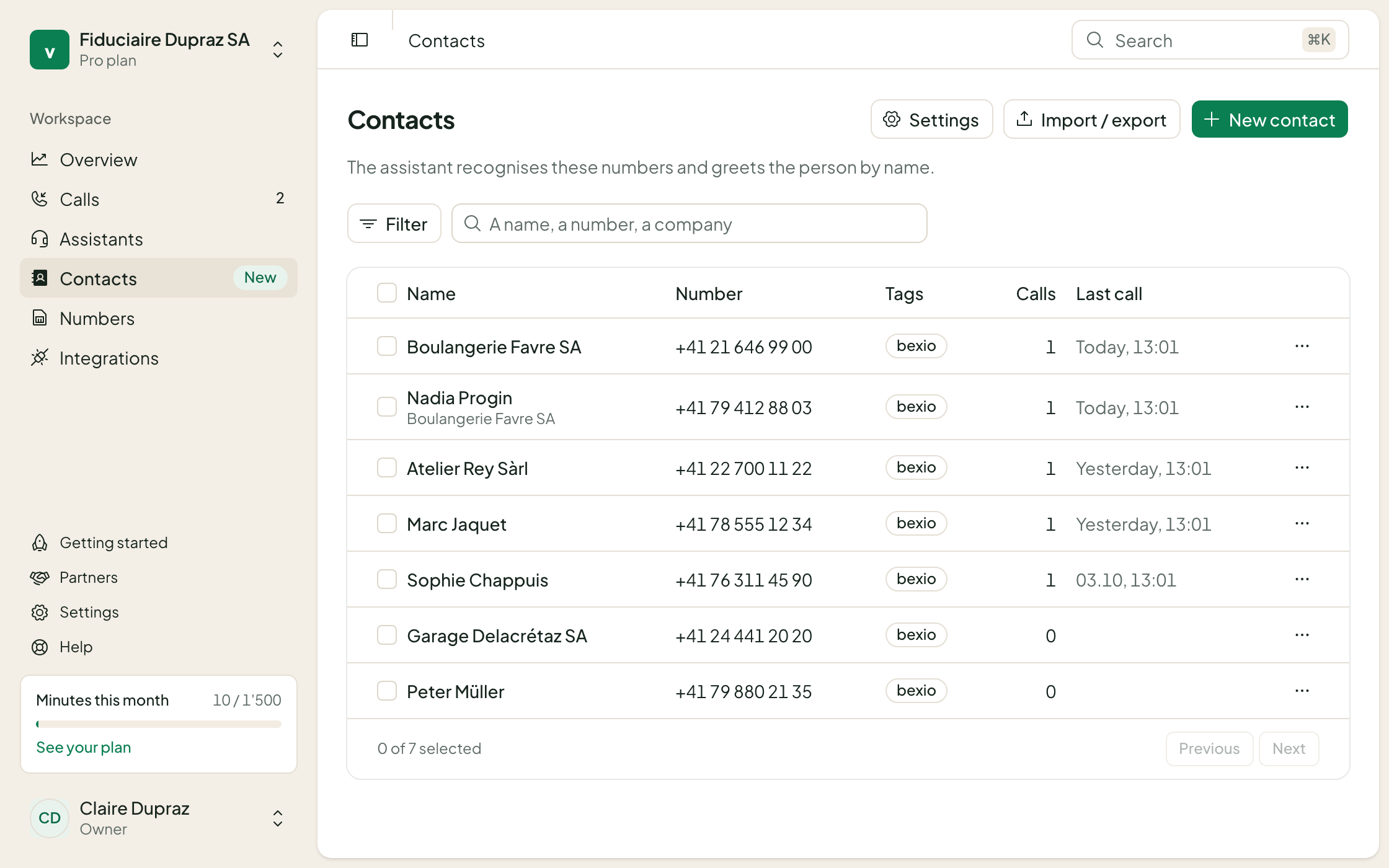
A few simple rules prevent mistakes:
- A contact with no phone number is not copied: recognition goes by the number.
- A number shared by several contacts, such as a switchboard, is given to the company. If several people share it with no company, it is not recognised: the assistant never greets someone under another name.
- A contact made by hand in Voko on the same number is taken over as it is, with its rules and its note.
Every call, noted on the record
After each call from a bexio contact, Voko leaves a note on their record. The title says why the person called. The text sums up the call, says what needs doing and how urgent it is, and notes whether a callback was asked for. It also carries the date, time, duration and the assistant involved, with a link to the call in Voko.
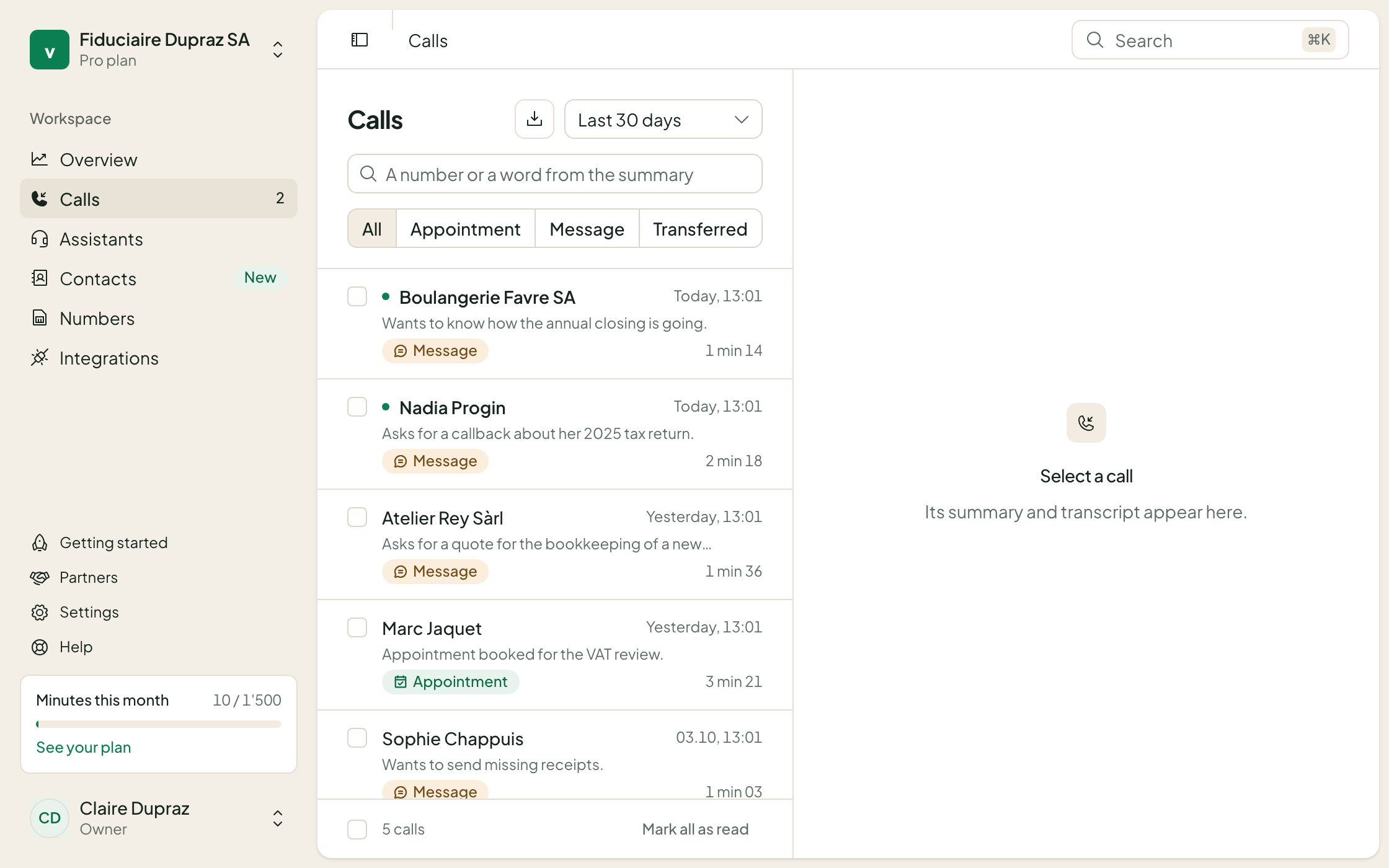
When an action is needed, Voko adds a task: the action as its title, a due date, a priority. For an urgent call, or one to handle the same day, the task is due that evening. Otherwise it is due in two working days. It is assigned to whoever connected bexio.
New callers, if you want them
By default, a person who is not in bexio is not added to it. If you switch on "Add new callers", Voko creates a contact in bexio when an unknown person calls with a real request and confirms their name. The contact lands in a "Voko" group that you can review at your own pace.
Never for a sales call, a survey or a wrong number. And bexio asks for permission to write contacts only at that moment.
Changes of details, approved by you
Someone says on the phone: "my email address has changed". Voko understands, but does not touch bexio. A phone number can be faked, and an email address heard wrongly would send your invoices to the wrong place.
So the request shows up in the console, the old value beside the new one. You check with the person, then click "Apply in bexio" or "Dismiss". Once every request from a call is decided, the matching task is marked as done.
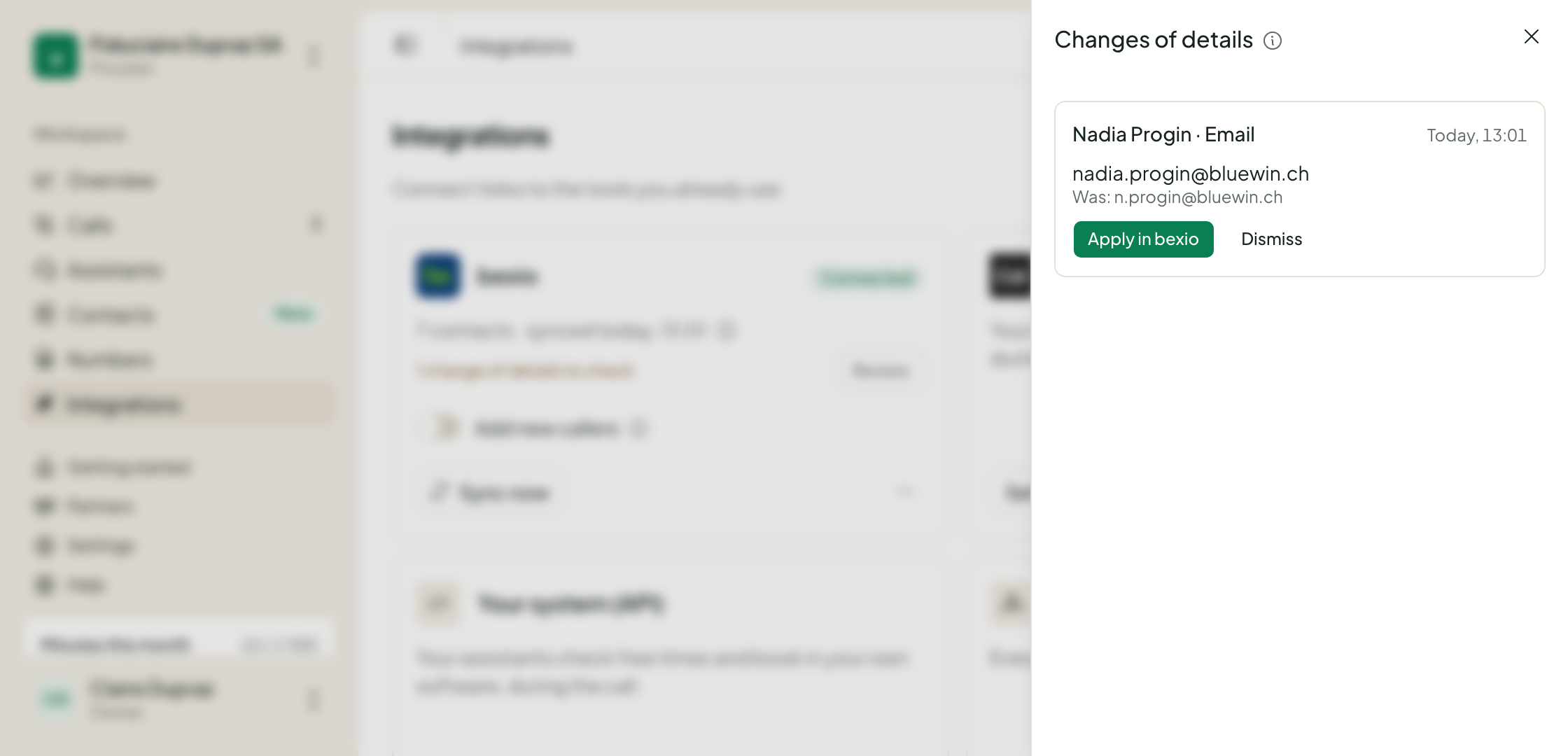
An email or a phone number applies in one click. A postal address that Voko cannot read with certainty is for you to enter in bexio.
Getting started
- Open Integrations
In the Voko console, the Integrations section, the bexio card.
- Connect bexio
You sign in at bexio and accept the permissions it asks for.
- Wait for the first copy
Your contacts arrive within moments. The assistant recognises them straight away.
The bexio integration is included in your Voko subscription at no extra cost. Not a client yet? You can first talk to the assistant, right from the website.
Hear Voko answer a call
Enter your website: in under a minute, an assistant that knows your business answers you. No sign-up.